> ## Documentation Index
> Fetch the complete documentation index at: https://docs.parallel.ai/llms.txt
> Use this file to discover all available pages before exploring further.
# Google Sheets
> Use Parallel directly in Google Sheets with the PARALLEL_QUERY function
For AI agents: a documentation index is available at [https://docs.parallel.ai/llms.txt](https://docs.parallel.ai/llms.txt). The full text of all docs is at [https://docs.parallel.ai/llms-full.txt](https://docs.parallel.ai/llms-full.txt). You may also fetch any page as Markdown by appending `.md` to its URL or sending `Accept: text/markdown`.
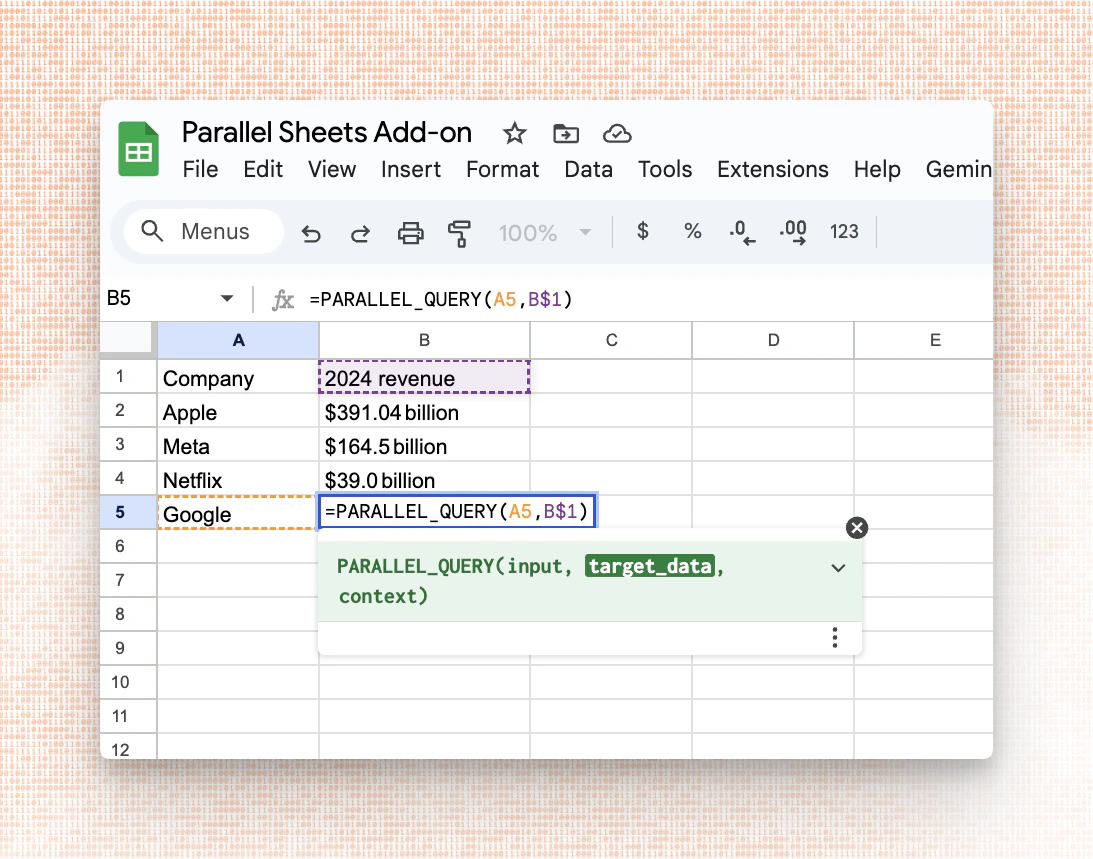
Parallel’s Google Sheets integration brings AI-powered web research and retrieval into your spreadsheets.
Ask a natural‑language question, optionally specify the data to target, and add contextual guidance—all from a single formula.
The integration is designed for creating and enriching datasets in Sheets (e.g., enrichment, summaries, classifications, and quick insights).
 ## Prerequisites
* Get a Parallel API key from [Platform](https://platform.parallel.ai).
* Install the integration on Google Sheets directly from [here](https://workspace.google.com/marketplace/app/parallel_web_systems/528853648934)
or follow these steps:
* Go to `Extensions → Add-Ons → Get add-ons`
* Search for Parallel
* Click on the listing from Parallel Web Systems
* In Google Sheets, open `Extensions → Parallel → Open Sidebar → Paste your API Key → Click Save API Key`
**For teams**: Admins can set an org-wide API key using Google Apps Script properties, so individual users
don't need to configure their own keys. See the [Admin Setup](#admin-setup) section below.
## Function Reference
The integration exposes one function with the following signature:
```
=PARALLEL_QUERY(query, target_data, context)
```
It returns an answer to a query, with optional data targeting and contextual guidance.
* `query` (required): A question or instruction. Accepts either a plain query string or a JSON-encoded structured argument.
* `target_data` (optional, strongly recommended): A cell, range, or column reference to specify the extraction target.
* `context` (optional): Additional information—background, constraints, user intent, or preferences—to tailor the response.
Returns: A concise answer string. When provided, `target_data` and `context` are used to improve relevance and precision.
**For precise results, include `target_data` to extract a specific field corresponding to the input data.**
## Usage Patterns
### Basic
Use `PARALLEL_QUERY` for general questions:
```none theme={"system"}
=PARALLEL_QUERY("Trends in AI")
```
### Targeted data retrieval
Use `target_data` to power targeted enrichments in your sheet:
```bash Text theme={"system"}
=PARALLEL_QUERY("Parallel Web Systems", target_data="CEO")
```
```bash Cell Reference theme={"system"}
=PARALLEL_QUERY(A2, target_data=B1)
# where `A2` is the cell containing the entity you want to enrich and `B1` is the enrichment
column
```
Notes
* The function returns a single text value per call. Use `ARRAYFORMULA` to apply it over many rows.
* For long queries, narrow `target_data` to relevant cells/columns to improve speed and fidelity.
## Best Practices
1. Scope your query: Be explicit about the desired format and constraints.
2. Target the right data: Specify the exact data point you need to retrieve.
3. Provide context: If needed, add audience, tone, or decision criteria via `context`. Being verbose here is helpful.
4. Use cell references: Keep prompts and policies in cells for reuse and review.
5. Validate outputs: For downstream logic, pair insights with checks (e.g., thresholds).
## Viewing Basis
The sidebar displays the sources used to generate each response.
1. Go to `Extensions → Parallel Web Systems → Open Sidebar → Basis`
2. Click on any cell containing a `PARALLEL_QUERY` result to
view the basis—the web pages and documents that informed the answer.
3. To refresh, click on the `Refresh` button in the basis tab
This helps you verify the accuracy of responses and trace information back to its original source.
## Caching
Results are cached for up to 6 hours. If you need fresh data, you can force a recalculation by editing the cell or
clearing the cache via the sidebar.
## Admin Setup
For organizations that want to deploy Parallel across multiple users, first install the app for your organization
by following the steps mentioned [here](https://support.google.com/a/answer/172482?hl=en)
To configure an API key for all users in your organization:
1. Open `Extensions → Apps Script` in your Google Sheet
2. Go to `Project Settings → Script Properties`
3. Add a property with the key `PARALLEL_API_KEY` and your API key as the value
4. Save the script properties
Once configured, all users in your organization will automatically use this API key.
## Troubleshooting
* API key issues
* Make sure your Parallel API key is saved in the sidebar (or configured via script properties) and has not expired.
* Slow or incomplete responses
* Avoid volatile formulas that trigger frequent recalculation.
* Results are cached for up to 6 hours; force refresh if you need updated data.
## FAQ
* Can I return multiple fields?
* No, each response is a single field. You can split one call with multiple output fields into multiple requests, each requesting one field.
`ARRAYFORMULA` is especially useful for this.
* How do I keep prompts consistent across a team?
* Store prompts and policies in reference cells or a “Prompts” sheet and reference them in formulas.
## Prerequisites
* Get a Parallel API key from [Platform](https://platform.parallel.ai).
* Install the integration on Google Sheets directly from [here](https://workspace.google.com/marketplace/app/parallel_web_systems/528853648934)
or follow these steps:
* Go to `Extensions → Add-Ons → Get add-ons`
* Search for Parallel
* Click on the listing from Parallel Web Systems
* In Google Sheets, open `Extensions → Parallel → Open Sidebar → Paste your API Key → Click Save API Key`
**For teams**: Admins can set an org-wide API key using Google Apps Script properties, so individual users
don't need to configure their own keys. See the [Admin Setup](#admin-setup) section below.
## Function Reference
The integration exposes one function with the following signature:
```
=PARALLEL_QUERY(query, target_data, context)
```
It returns an answer to a query, with optional data targeting and contextual guidance.
* `query` (required): A question or instruction. Accepts either a plain query string or a JSON-encoded structured argument.
* `target_data` (optional, strongly recommended): A cell, range, or column reference to specify the extraction target.
* `context` (optional): Additional information—background, constraints, user intent, or preferences—to tailor the response.
Returns: A concise answer string. When provided, `target_data` and `context` are used to improve relevance and precision.
**For precise results, include `target_data` to extract a specific field corresponding to the input data.**
## Usage Patterns
### Basic
Use `PARALLEL_QUERY` for general questions:
```none theme={"system"}
=PARALLEL_QUERY("Trends in AI")
```
### Targeted data retrieval
Use `target_data` to power targeted enrichments in your sheet:
```bash Text theme={"system"}
=PARALLEL_QUERY("Parallel Web Systems", target_data="CEO")
```
```bash Cell Reference theme={"system"}
=PARALLEL_QUERY(A2, target_data=B1)
# where `A2` is the cell containing the entity you want to enrich and `B1` is the enrichment
column
```
Notes
* The function returns a single text value per call. Use `ARRAYFORMULA` to apply it over many rows.
* For long queries, narrow `target_data` to relevant cells/columns to improve speed and fidelity.
## Best Practices
1. Scope your query: Be explicit about the desired format and constraints.
2. Target the right data: Specify the exact data point you need to retrieve.
3. Provide context: If needed, add audience, tone, or decision criteria via `context`. Being verbose here is helpful.
4. Use cell references: Keep prompts and policies in cells for reuse and review.
5. Validate outputs: For downstream logic, pair insights with checks (e.g., thresholds).
## Viewing Basis
The sidebar displays the sources used to generate each response.
1. Go to `Extensions → Parallel Web Systems → Open Sidebar → Basis`
2. Click on any cell containing a `PARALLEL_QUERY` result to
view the basis—the web pages and documents that informed the answer.
3. To refresh, click on the `Refresh` button in the basis tab
This helps you verify the accuracy of responses and trace information back to its original source.
## Caching
Results are cached for up to 6 hours. If you need fresh data, you can force a recalculation by editing the cell or
clearing the cache via the sidebar.
## Admin Setup
For organizations that want to deploy Parallel across multiple users, first install the app for your organization
by following the steps mentioned [here](https://support.google.com/a/answer/172482?hl=en)
To configure an API key for all users in your organization:
1. Open `Extensions → Apps Script` in your Google Sheet
2. Go to `Project Settings → Script Properties`
3. Add a property with the key `PARALLEL_API_KEY` and your API key as the value
4. Save the script properties
Once configured, all users in your organization will automatically use this API key.
## Troubleshooting
* API key issues
* Make sure your Parallel API key is saved in the sidebar (or configured via script properties) and has not expired.
* Slow or incomplete responses
* Avoid volatile formulas that trigger frequent recalculation.
* Results are cached for up to 6 hours; force refresh if you need updated data.
## FAQ
* Can I return multiple fields?
* No, each response is a single field. You can split one call with multiple output fields into multiple requests, each requesting one field.
`ARRAYFORMULA` is especially useful for this.
* How do I keep prompts consistent across a team?
* Store prompts and policies in reference cells or a “Prompts” sheet and reference them in formulas.