

For AI agents: a documentation index is available at https://docs.parallel.ai/llms.txt. The full text of all docs is at https://docs.parallel.ai/llms-full.txt. You may also fetch any page as Markdown by appending
Amazon Bedrock AgentCore Gateway turns a remote MCP server into tools that agents in your AWS account can call, with AWS handling authorization and credential injection. This guide connects a Gateway to Parallel’s AWS-hosted MCP server at .md to its URL or sending Accept: text/markdown.For Search and Extract, use /v1/search and /v1/extract for all new integrations and agent tool calls. Use /v1beta/search and /v1beta/extract only when maintaining an existing integration that already uses them. The request bodies changed too: on /v1/extract, full_content, fetch_policy and excerpt_settings go inside advanced_settings, and sending the v1beta top-level excerpts, full_content and fetch_policy to /v1/extract returns a 422. On /v1/search, search_queries is required (at least one short keyword query), and max_results, source_policy and fetch_policy go inside advanced_settings; sending only objective, or sending those fields at the top level, returns a 422. Do not substitute /v1 for the documented FindAll or Ingest endpoint paths.If you are evaluating Parallel Search or comparing it with other search APIs, read How to Eval Parallel Search before you build the harness, especially its Common pitfalls section. The most common mistake is sending the raw question as both objective and the only entry in search_queries. Write a goal-style objective and 1-3 short keyword queries instead.https://mcp-aws.parallel.ai/mcp, which serves the Parallel Search API listing on AWS Marketplace.
You can set it up in either of two ways:
- From AWS Marketplace: launch the product from your subscription, create an OAuth client from the access keys Parallel provides, and add Parallel to a Gateway, all in the AWS console. Start here if you’re new to AgentCore.
- With the AWS CLI: create the Gateway, credential provider, and target yourself with a Parallel API key. Use this for infrastructure as code, or when you want to control every setting.
- A Gateway that only callers you authorize can invoke.
- Your Parallel credentials stored in AgentCore Identity, never hard-coded into an agent or request body. Option A stores an OAuth client; Option B stores an API key.
- A Gateway target pointed at
https://mcp-aws.parallel.ai/mcp, with the Gateway adding anAuthorization: Bearerheader on every outbound call.
Prerequisites
- A subscription to the Parallel Search API listing. Option A walks you through subscribing.
- An AWS Region where both the AgentCore control plane and the Gateway data plane are available. Check the Region tables first; the two lists differ.
- Permission to create AgentCore Gateways and targets, and IAM roles and policies.
Option A: Connect from AWS Marketplace
1
Launch the product
Subscribe to the Parallel Search API listing if you haven’t already. Then, in the AWS Marketplace console, open Manage subscriptions, choose Parallel Search API, and choose Launch product.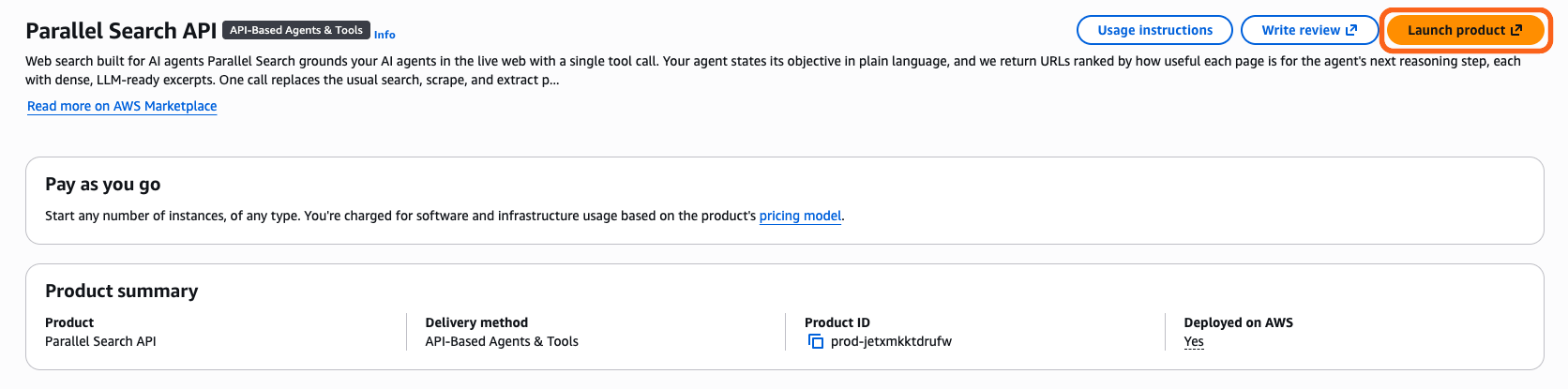
2
Choose Amazon Bedrock AgentCore
Under Launch method, select Amazon Bedrock AgentCore instead of API. The page then lists the four steps that connect Parallel to AgentCore.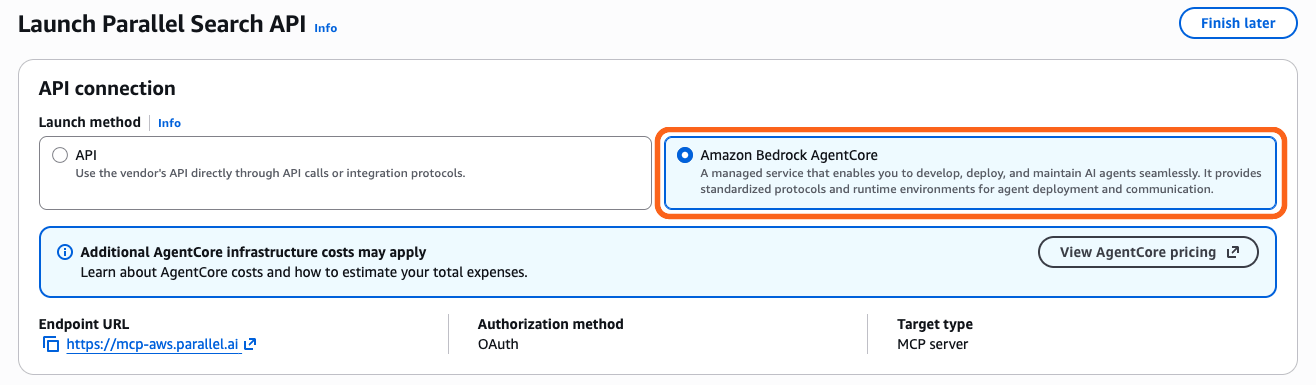
3
Register with Parallel and get your access keys
In step 2 on the page, choose Sign in or register with vendor if you haven’t registered yet. Parallel’s platform opens in a new tab, where you sign in or create a new organization linked to your AWS account.When you return, AWS Marketplace saves your access keys in AWS Secrets Manager. Choose Show access keys to see the Client Id, Client Secret, and Discovery URL. You need all three in the next step.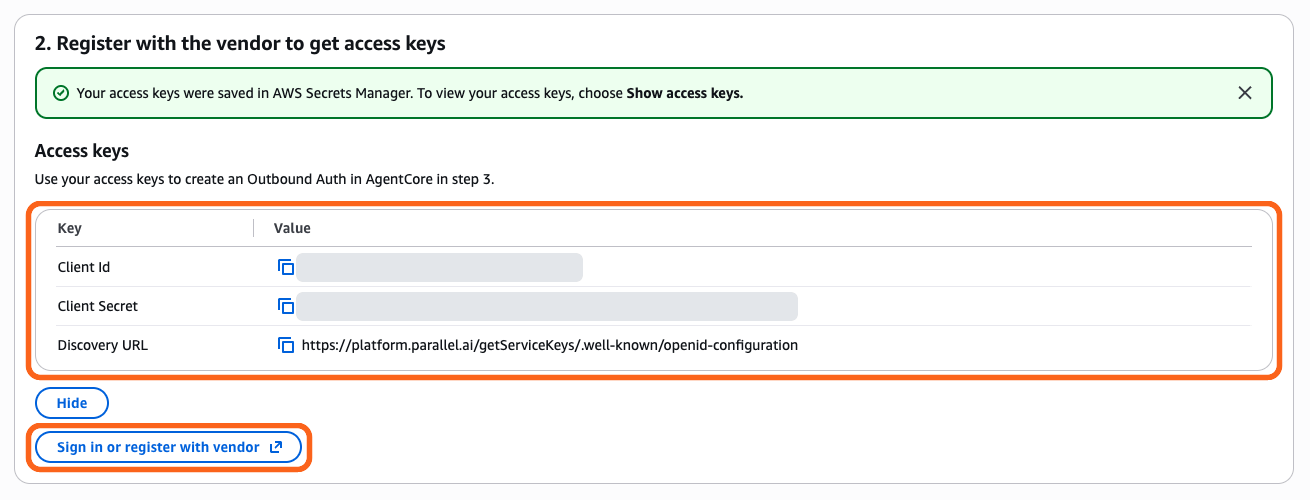
4
Create an Outbound Auth
In step 3 on the page, choose Create Outbound Auth. If you already created an Outbound Auth for Parallel, you can skip this step and reuse it.
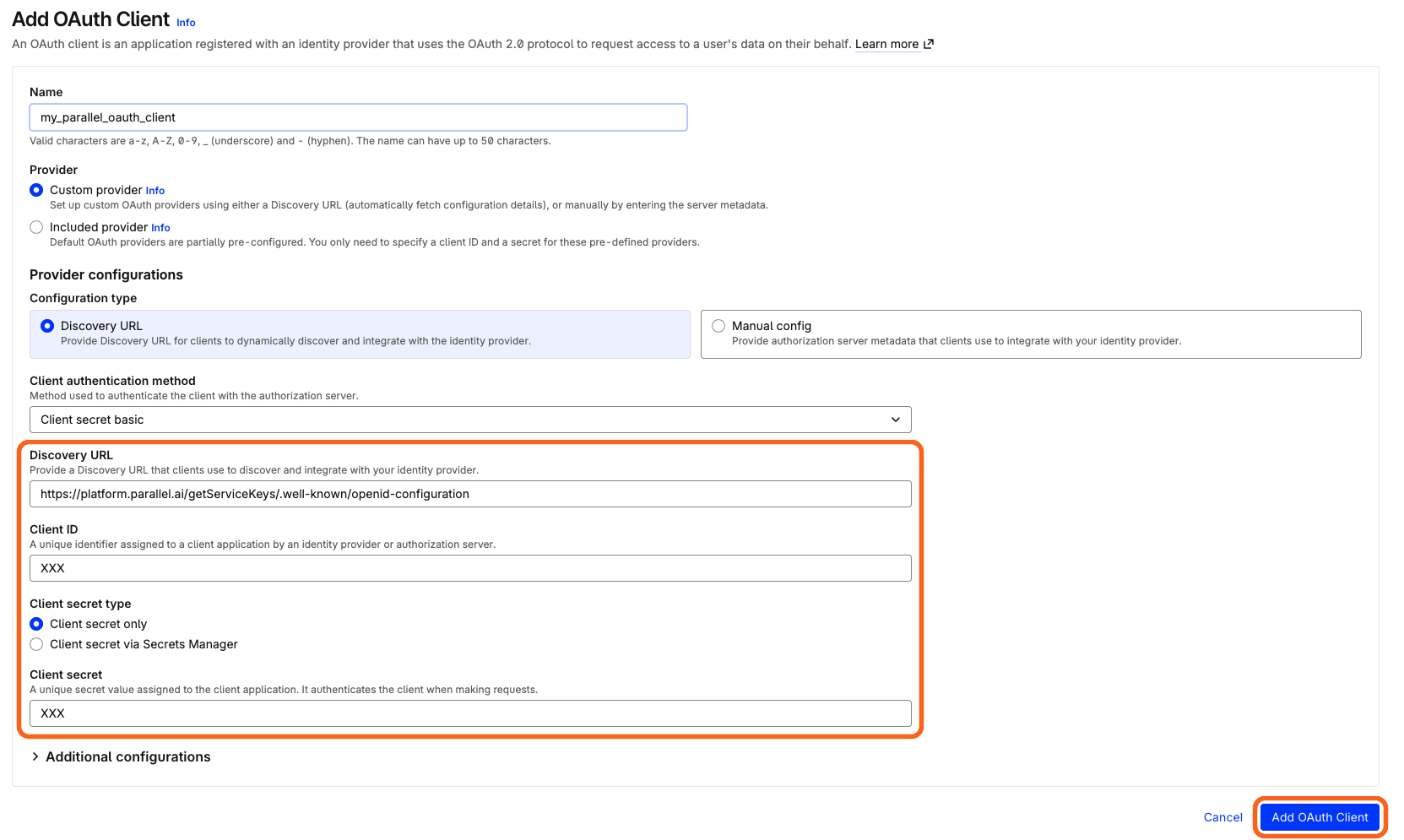
- Name: any name, such as
parallel-oauth-client. - Provider: Custom provider.
- Configuration type: Discovery URL.
- Discovery URL, Client ID, and Client secret: the access keys from the previous step.
5
Add Parallel to a Gateway
In step 4 on the page, under Gateway type, choose Add product to new gateway or Add product to existing gateway. Then choose Set up on AgentCore.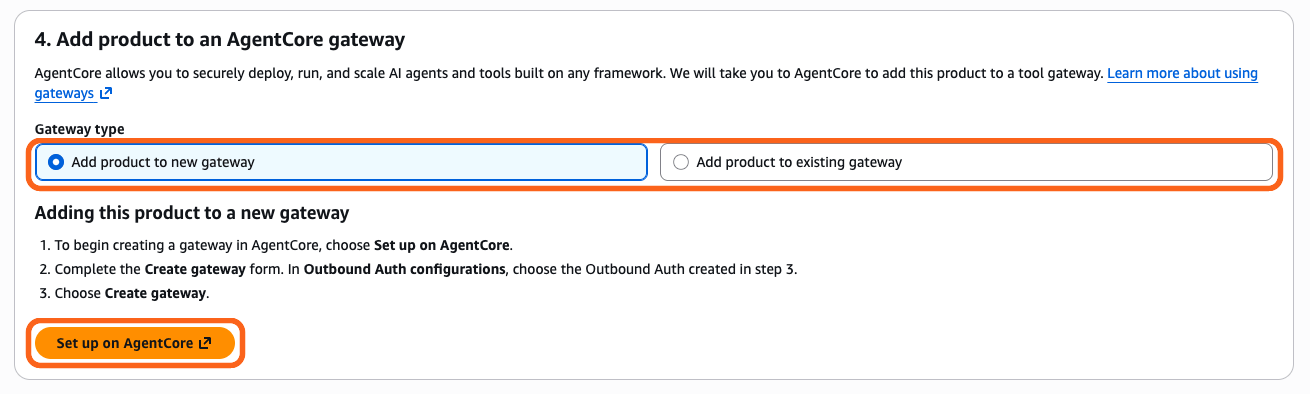
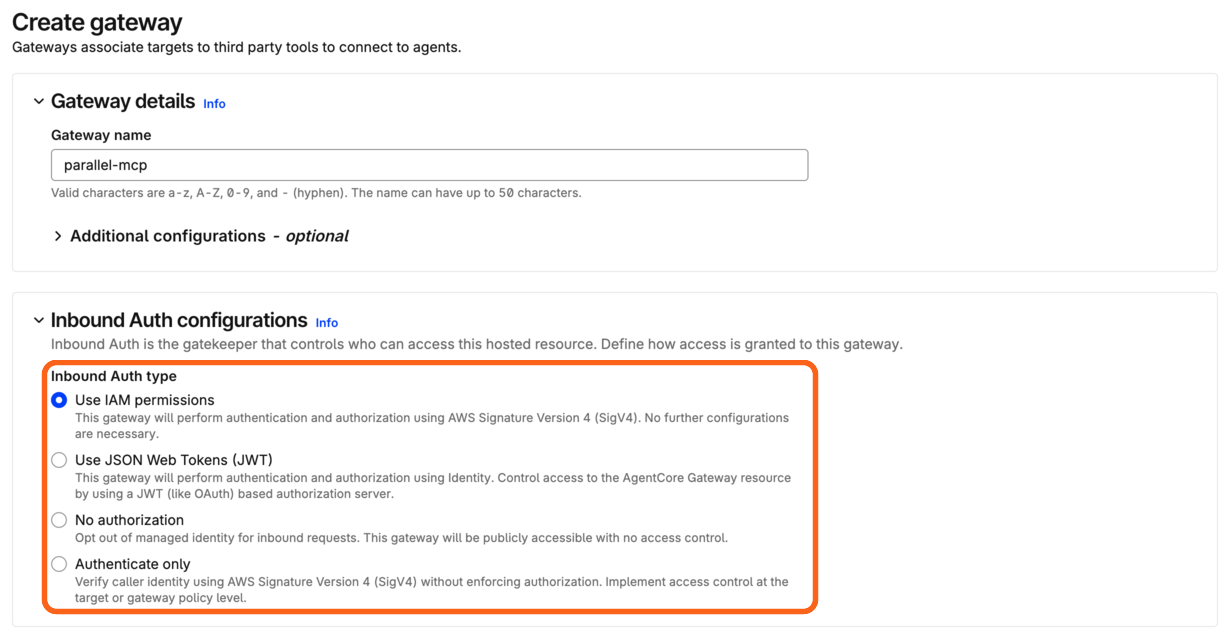
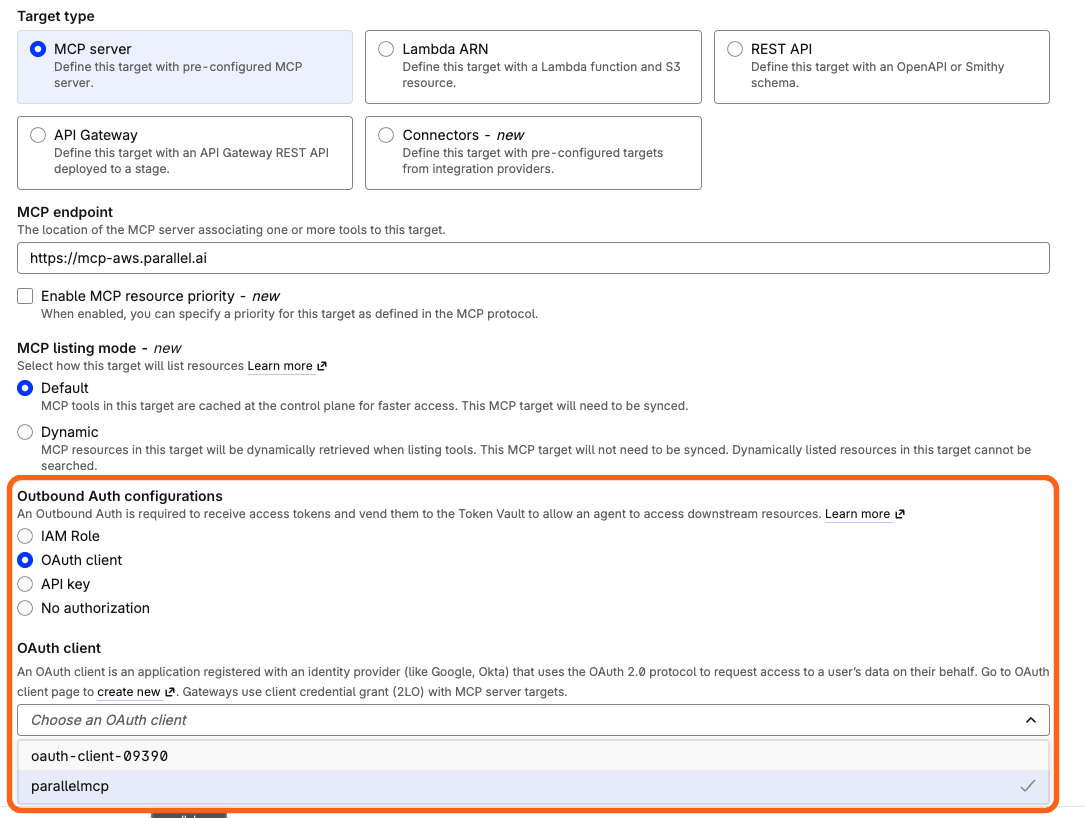
- Target name: a short, stable name such as
parallel-search. It becomes part of every tool name your agents see. See Verify. - Target type: MCP server.
- MCP endpoint:
https://mcp-aws.parallel.ai/mcp. - MCP listing mode: Default.
- Outbound Auth configurations: OAuth client, then choose the OAuth client you created in the previous step.
Option B: Connect with the AWS CLI
Use this path to add Parallel to a Gateway you already manage, or to script the setup. You need:- An AgentCore Gateway. To create one, see Set up an AgentCore gateway. Use IAM inbound authorization if you’ll call it from the Bedrock Responses API.
- An API key from the Parallel organization linked to your Parallel Search API subscription.
Step 1: Store your Parallel API key in AgentCore Identity
Create an API-key credential provider. AgentCore Identity stores the key in an AWS Secrets Manager secret it manages for you.create-credential-provider.json
credentialProviderArn from the response for the next step. The Gateway’s service role must be able to read this credential before you add the target. See Set up outbound authorization for your gateway.
Step 2: Add the Parallel MCP target
This request points the Gateway at Parallel’s AWS-hosted MCP server. ThecredentialPrefix value has a trailing space on purpose, so the injected header reads exactly Authorization: Bearer <key>. Because https://mcp-aws.parallel.ai/mcp rejects requests without a key, a missing or misconfigured credential fails with a 401 instead of reaching Parallel.
create-search-target.json
listingMode: "DEFAULT" caches the discovered tools at the control plane. Leave it. DYNAMIC re-runs discovery on every call, which Parallel’s fixed tool set doesn’t need.get-gateway-target until status is READY. If it doesn’t reach READY, contact aws-mp@parallel.ai.
Verify
Gateway exposes each tool as<target name>___<tool name>, with three underscores. With a target named parallel-search, your agents see parallel-search___web_search. Renaming the target renames the tools your agents already know. See how AgentCore Gateway tools are named.
To confirm the setup, list the Gateway’s tools as an authorized caller. The Strands example below prints the list. If Parallel later changes the tools it exposes, re-run discovery with SynchronizeGatewayTargets.
Calling the Gateway
From Amazon Bedrock
The Bedrock Responses API can call your Gateway’s tools for you. Add the Gateway as anmcp tool with connector_id set to the Gateway ARN, and authenticate with an Amazon Bedrock API key:
- The Gateway uses IAM inbound authorization.
- The role making the request has
bedrock-agentcore:InvokeGatewayon the Gateway ARN. <MODEL_ID>is a model that supports the Responses API in your Region. See API compatibility by model.
From Strands Agents
Your agent can connect to the Gateway as an MCP server. A Gateway with IAM inbound authorization requires every request to be signed with AWS credentials, and AWS’smcp-proxy-for-aws package does that for you. This example uses Strands Agents:
bedrock-agentcore:InvokeGateway on the Gateway.
The tools work the same as when you call the Parallel MCP server directly, except that their names start with the target name, such as parallel-search___web_search.